How to Backup and Restore Your Tachiyomi/Mihon Library
If you followed an old Tachiyomi tutorial and can’t find “Backup and Restore” anymore, that’s not a bug on your end — the menu got renamed to Data and storage. The steps underneath it are basically the same.
This page shows you exactly how to create a backup, restore it on the same or a new device, and avoid the one mistake that makes a “successful” restore look broken.
What a Backup Actually Saves
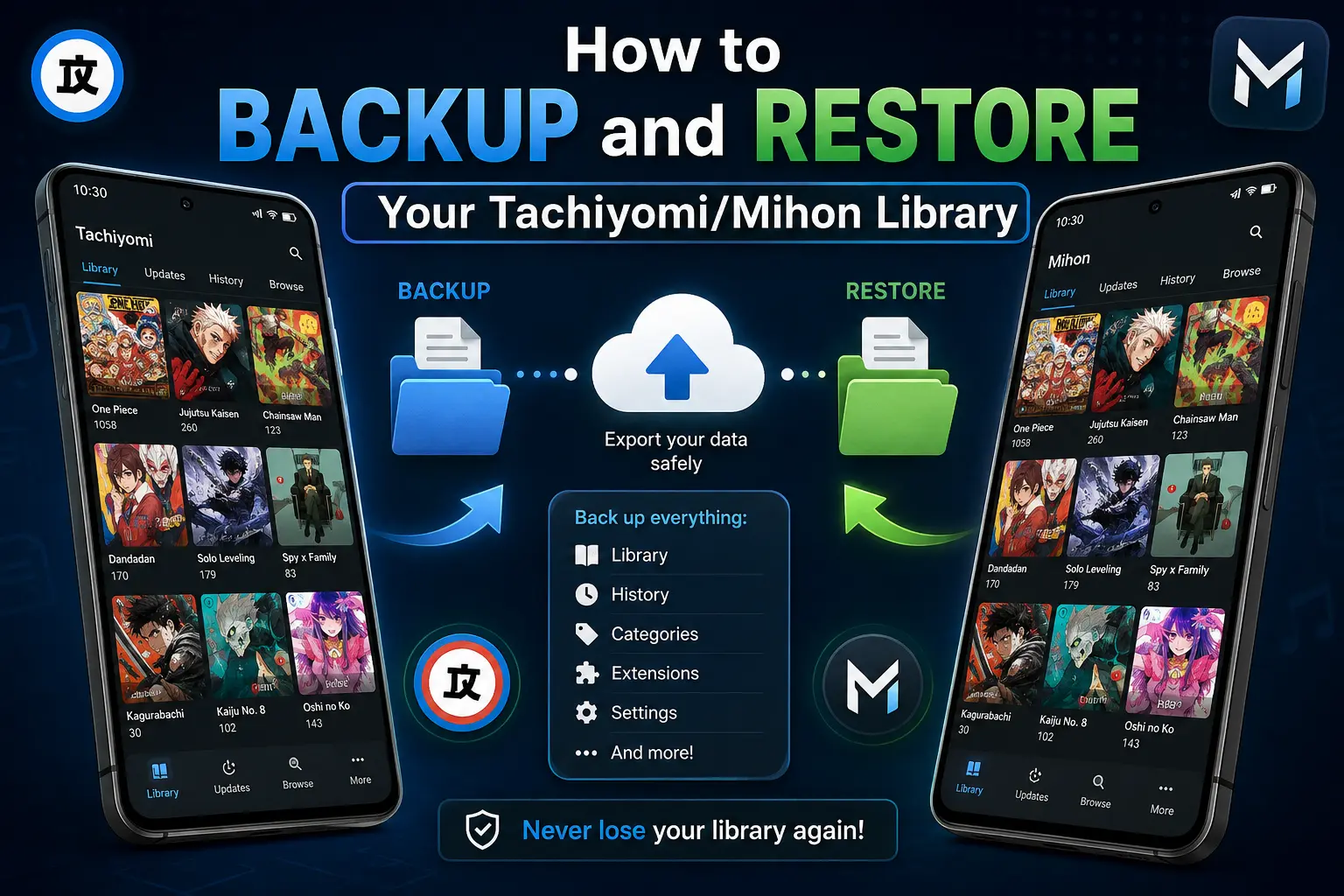
A Tachiyomi/Mihon backup includes your library entries, categories, reading history, and tracker links (MAL, AniList, etc.), along with your app settings.
It does not include:
- The extension APKs themselves
- Downloaded chapter files
- Active tracker login sessions
That’s why a restore can look “empty” even when it worked correctly — the library data is there, but the app still needs the extensions and tracker logins reconnected separately. More on that below.
How to Create a Backup
- Open the app and tap More.
- Tap Data and storage. (Older versions of Tachiyomi called this Backup and restore — same feature, different name.)
- Tap Create backup.
- Select all data categories — library, categories, history, tracking, settings. There’s no real reason to leave anything out.
- Choose a save location and confirm.
Your backup file saves in the .tachibk format, which works across Mihon and its supported forks.
Turning On Automatic Backups
In the same Data and storage menu, you can enable automatic backups and set how often they run. This saves you from remembering to do it manually before every device switch or app update.
How to Restore a Backup
- Go to More → Data and storage.
- Tap Restore backup and select your file.
- The app scans the file and flags anything it can’t restore on its own — usually missing extensions or tracker logins.
- Confirm the restore. It can take a few seconds to about a minute, depending on your library size and device.
Same steps whether you’re restoring on the same device or a new one — the only difference is getting the backup file onto the new device first (cloud storage, file transfer, etc.).
Before You Restore: Extensions and Trackers
Install the same extensions you had active when you made the backup, and log back into your tracking services. A restore brings back your library data, not the extensions or logins tied to it those need to be set up again on the new install.
Why Restored Titles Sometimes Show No Chapters
A restore can complete successfully and you’ll still see titles with no chapters or a source that won’t load. That’s not a failed restore it means the extension for that source isn’t installed yet, or the source itself changed since your backup was made.
Restoring the library and getting your sources working again are two separate steps. If a title looks broken after restore, check this before assuming the backup itself failed:
- Is the extension for that source installed?
- Is it the same version (or newer) than when you backed up?
- Does the source load at all if you try it fresh, outside your library?
If all three check out and it’s still not loading, the source’s website likely changed not something a backup or restore can fix on its own.
Backing Up Before Switching From Tachiyomi to Mihon
If you’re moving from Tachiyomi to Mihon, the same backup file works — Mihon reads the .tachibk format directly, along with endorsed forks. Create your backup the same way described above, then restore it inside Mihon using the same Data and storage menu.
Closing
Set up automatic backups now, while your library is intact it’s the difference between a five-minute restore and rebuilding your list from memory later.