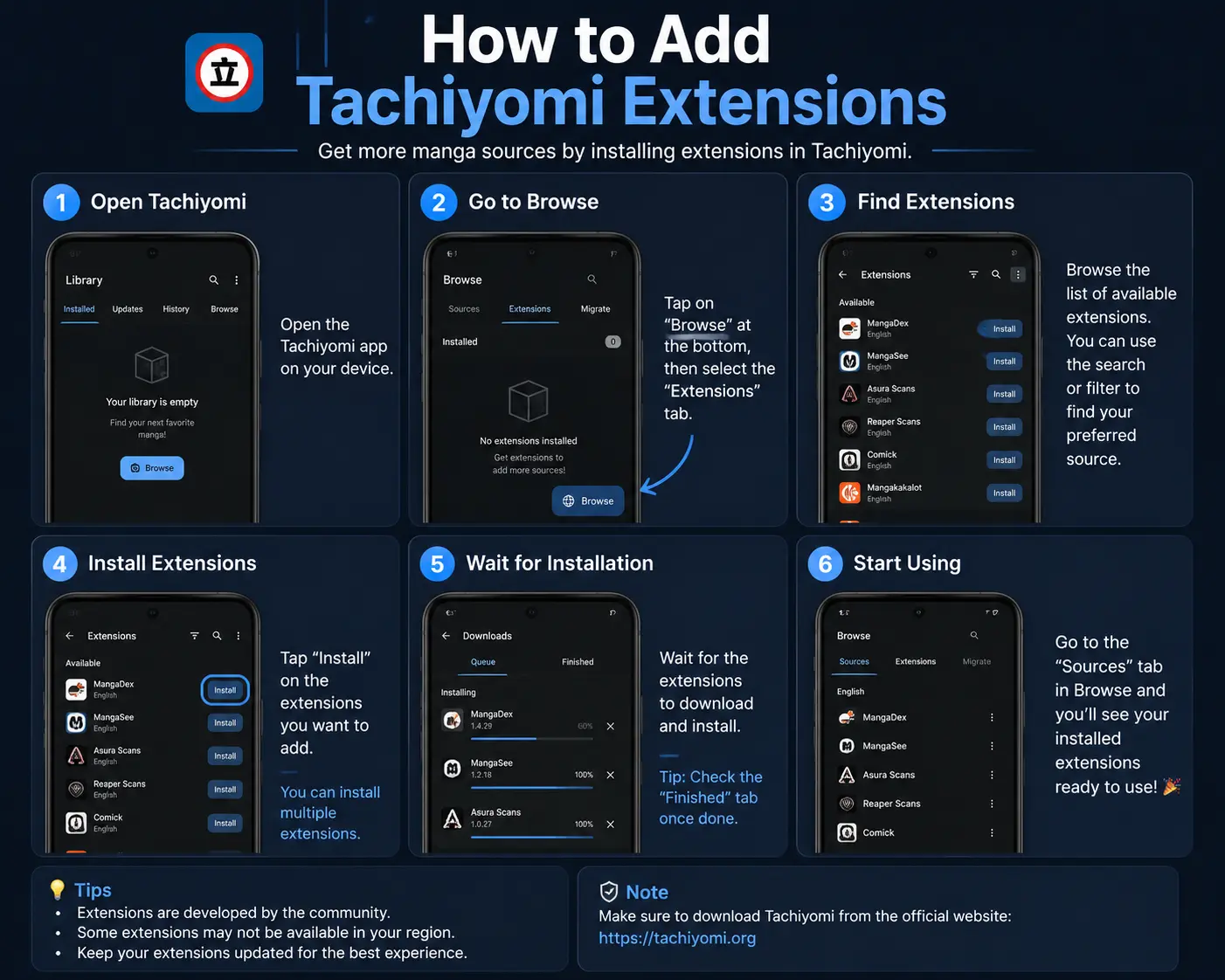
How to Add Tachiyomi Extensions
If you’re trying to add extensions to Tachiyomi and nothing shows up after following an old method, that’s usually because extensions were never built into the app — they come from a separate repository URL you add yourself. The steps below get you a working setup in a few minutes. One thing to check first: if you’re on an outdated build of the original Tachiyomi app rather than Mihon, some repos now redirect you instead of showing real extensions, so confirm which app you actually have before starting.
Which App Are You Using — Tachiyomi or Mihon?
Before adding anything, check which app is actually installed. Original Tachiyomi is no longer in active development, and some extension repos now detect this — instead of showing you real extensions, they show a placeholder telling you to switch to Mihon. If you’re not sure which one you have, check the app name in your device settings or the About section inside the app. If you’re already on Mihon, the steps below work exactly the same way.
Step 1 — Open the Extension Repo Setting
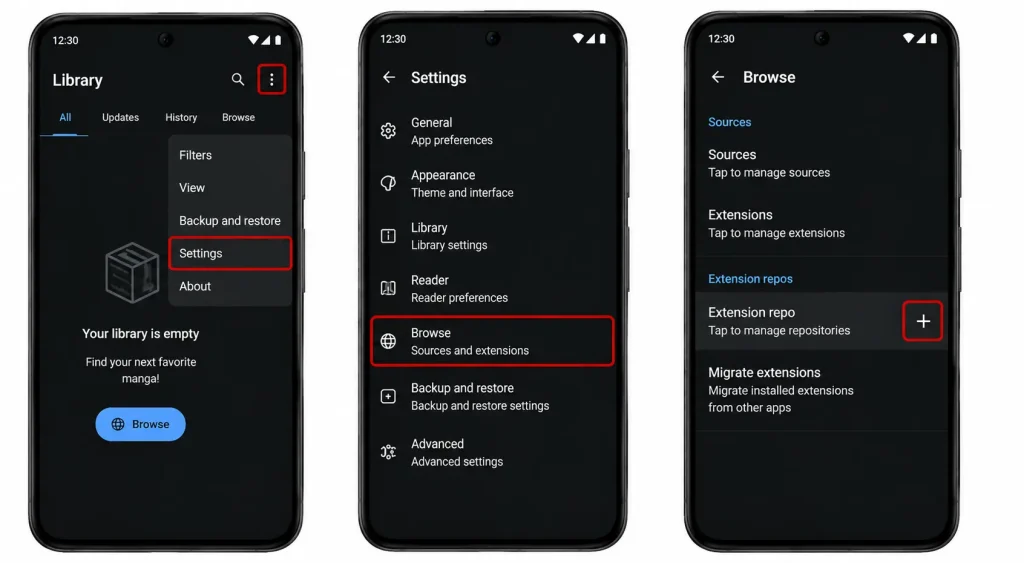
Open the app and go to More → Settings → Browse. Scroll down to Extension repo and tap the + button. This is where you’ll add the repository URL in the next step.
Step 2 — Get a Valid Repo URL
Not every link works here — the URL must end in index.min.json, or the app won’t be able to read it. A commonly used community repo is Keiyoushi, which is maintained independently and isn’t officially affiliated with Tachiyomi or Mihon. Its repo URL looks like this:
https://raw.githubusercontent.com/keiyoushi/extensions/repo/index.min.json
Copy the full link exactly as shown, since even a small change to the URL will make the repo fail to load.
Step 3 — Add the Repo and Refresh Extensions
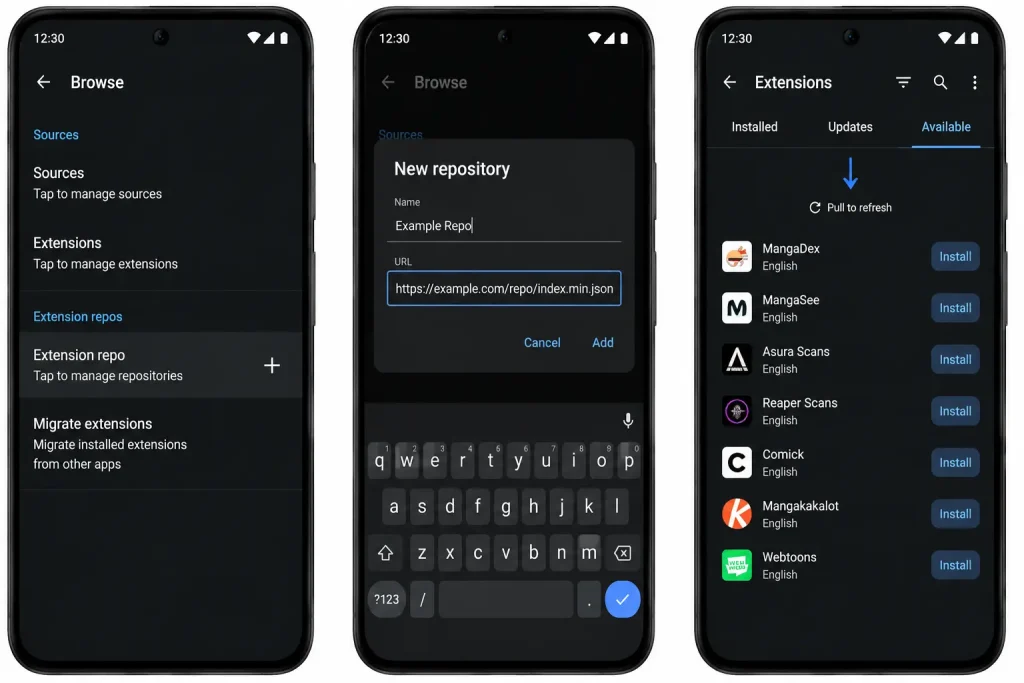
Go back to the app, paste the URL into the Extension repo field, and tap Add. Then head to Browse → Extensions and refresh the list. Refreshing is what actually pulls the current catalog from that URL — if you skip it, the app keeps showing whatever it last loaded, which is the most common reason a newly added repo looks empty.
Step 4 — Install and Trust the Extension
Tap Install on the extension you want. It’ll first appear under Untrusted — this happens because the extension isn’t from the app’s default source list and needs manual approval. Tap it, select Trust, and it moves to the active list. Check Browse → Sources to confirm it’s showing there.
If Extensions Don’t Show Up After Adding the Repo
- Wrong URL format — it must end in index.min.json, not just the repo’s main page link
- Forgot to refresh — the app only pulls the catalog when you refresh the Extensions list
- On outdated Tachiyomi — some repos now show an “update to Mihon” placeholder instead of real extensions
- No internet or WebView issue — check your connection and that WebView is up to date
What to Do Next
If you follow these steps and still see the “update to Mihon” placeholder instead of real extensions, that’s a sign your app itself needs to move, not just the repo. See our guide on migrating from Tachiyomi to Mihon to carry your library over before trying this again.